/articles/generating-ssh-key-pairs-on-linux-and-deploying-them-with-ssh-copy-id-a52f399a
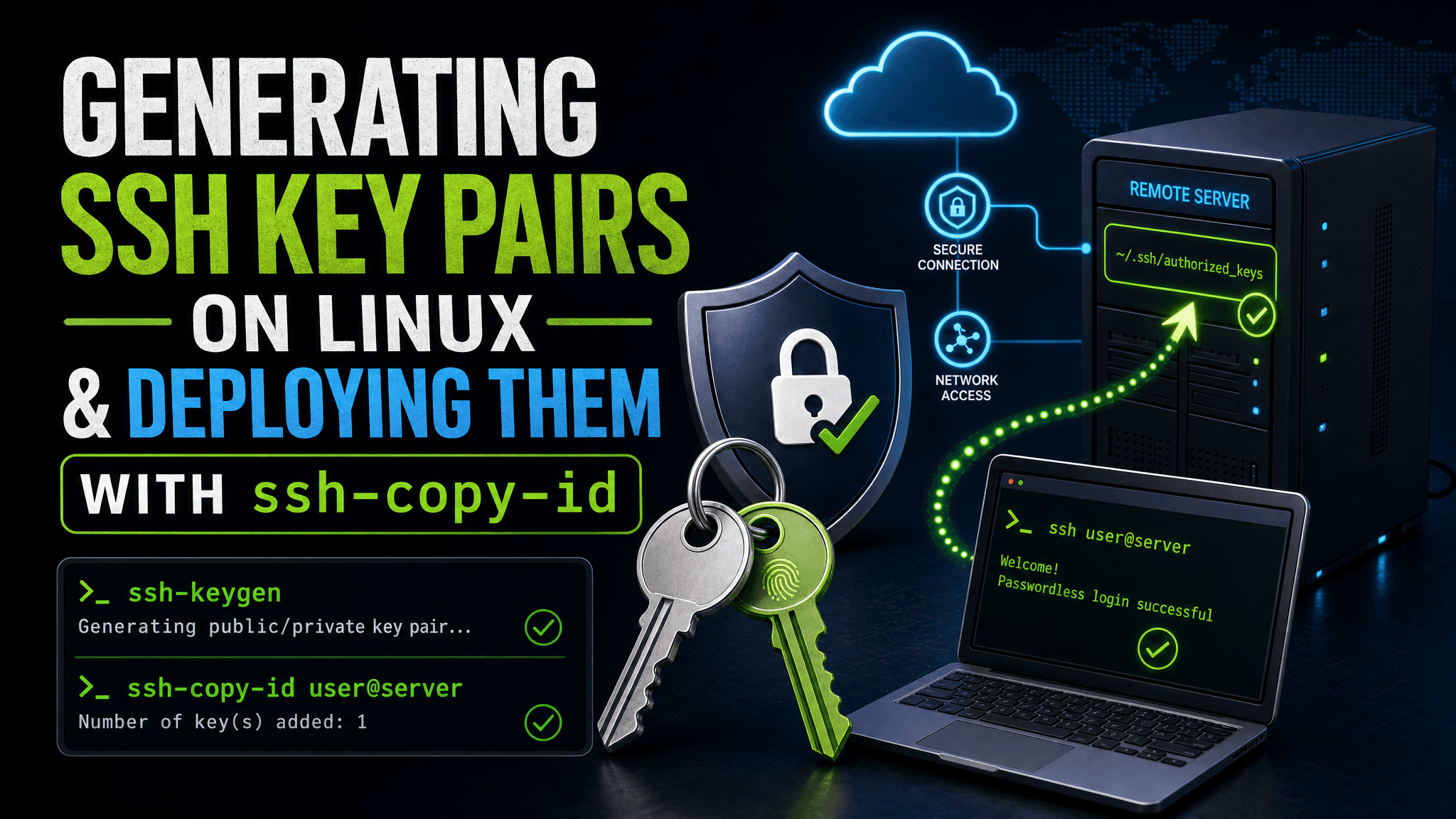
Generating SSH Key Pairs on Linux and Deploying Them with ssh-copy-id
Learn how to create SSH key pairs on Linux using ssh-keygen and securely deploy your public key to a remote server with ssh-copy-id for passwordless authentication.
Secure shell (SSH) key pairs are fundamental for passwordless, secure access to remote servers. This guide covers generating SSH keys on a Linux machine using ssh-keygen and pushing the public key to a remote server with ssh-copy-id.
Generating SSH Key Pairs with ssh-keygen
The ssh-keygen utility is the standard tool for creating SSH key pairs. By default, it generates an RSA key pair, but you can specify other algorithms like Ed25519 or ECDSA.
Basic Command
Run the following to generate a key pair:
ssh-keygenThis will prompt you for:
- File location: Defaults to
~/.ssh/id_rsa(or corresponding file for the key type). - Passphrase: Optional, but recommended for additional security.
Example Session
$ ssh-keygen
Generating public/private rsa key pair.
Enter file in which to save the key (/home/user/.ssh/id_rsa):
Enter passphrase (empty for no passphrase):
Enter same passphrase again:
Your identification has been saved in /home/user/.ssh/id_rsa
Your public key has been saved in /home/user/.ssh/id_rsa.pub
The key fingerprint is:
SHA256:... user@hostname
The key's randomart image is:
+---[RSA 3072]----+
| ...             |
+----[SHA256]-----+
Specifying Key Type and Size
To generate an Ed25519 key (recommended for modern systems):
ssh-keygen -t ed25519 -C "[email protected]"To generate an RSA key with a specific size (e.g., 4096 bits):
ssh-keygen -t rsa -b 4096 -C "[email protected]"The -C flag adds a comment, often used to identify the key.
Deploying Your Public Key with ssh-copy-id
Once you have your key pair, the public key (id_rsa.pub or equivalent) needs to be added to the remote server's ~/.ssh/authorized_keys file.
The ssh-copy-id utility automates this process.
Basic Usage
ssh-copy-id user@remote-serverThis command:
- Connects to
remote-serverasuser. - Appends your local public key to
~/.ssh/authorized_keyson the remote server. - Sets correct permissions if needed.
Example
ssh-copy-id [email protected]You will be prompted for alice's password on the remote server. After successful authentication, your key is installed.
Using a Specific Key File
If your public key is not the default ~/.ssh/id_rsa.pub, specify it with the -i flag:
ssh-copy-id -i ~/.ssh/id_ed25519.pub [email protected]Manual Public Key Deployment When Password Authentication is Disabled
In some cases, password authentication on the remote server may be disabled, preventing the use of ssh-copy-id. In such situations, you need to manually deploy your public key:
- Copy the public key content: On your local machine, display your public key content with:
cat ~/.ssh/id_rsa.pub(or the appropriate public key file).
-
Log in to the remote server as a user with sudo privileges: This might require console access or an alternative authentication method.
-
Switch to the target user (if necessary):
sudo -i -u targetuser- Create the
.sshdirectory if it does not exist:
mkdir -p ~/.ssh
chmod 700 ~/.ssh- Append the public key to the
authorized_keysfile:
echo "<paste-public-key-content-here>" >> ~/.ssh/authorized_keys
chmod 600 ~/.ssh/authorized_keys
Replace <paste-public-key-content-here> with the actual public key string copied earlier.
- Verify ownership: Ensure the
.sshdirectory and its contents are owned by the target user:
chown -R targetuser:targetuser ~/.sshAfter this manual deployment, you should be able to SSH into the remote server without a password.
Verifying Passwordless SSH Access
After deploying the key, test the connection:
ssh [email protected]If configured correctly, you should connect without a password prompt (unless you set a passphrase on the private key, in which case you'll be asked to unlock it).
Troubleshooting
- Permission issues: Ensure the remote
~/.sshdirectory has700permissions andauthorized_keyshas600.
chmod 700 ~/.ssh
chmod 600 ~/.ssh/authorized_keys- SSH daemon config: The remote server's
/etc/ssh/sshd_configmust allow public key authentication:
PubkeyAuthentication yes
AuthorizedKeysFile .ssh/authorized_keys-
SELinux or AppArmor: Security modules may block key-based auth; check logs if issues persist.
-
Manual deployment considerations for locked-down servers:
- Verify you have sudo privileges on the remote server to create and modify the
.sshdirectory andauthorized_keysfile. - Ensure the
.sshdirectory andauthorized_keysfile have the correct permissions (700and600respectively) and ownership set to the target user. - If you cannot log in directly as the target user, use an alternative user account with sudo rights to deploy the key.
- When password authentication is disabled, console or out-of-band access may be necessary to perform manual key deployment.
- Verify you have sudo privileges on the remote server to create and modify the
Summary
Generating SSH keys with ssh-keygen and deploying them using ssh-copy-id is a straightforward way to secure remote access without passwords. This setup is essential for automation, scripting, and improving security posture in Linux environments.
Comments and likes
Sign in or create an account to leave a comment or like this page.
0 comments
No comments yet.