
/news/perplexity-s-personal-computer-ai-agent-arrives-on-windows-726d0f2e
Perplexity's Personal Computer AI agent arrives on Windows
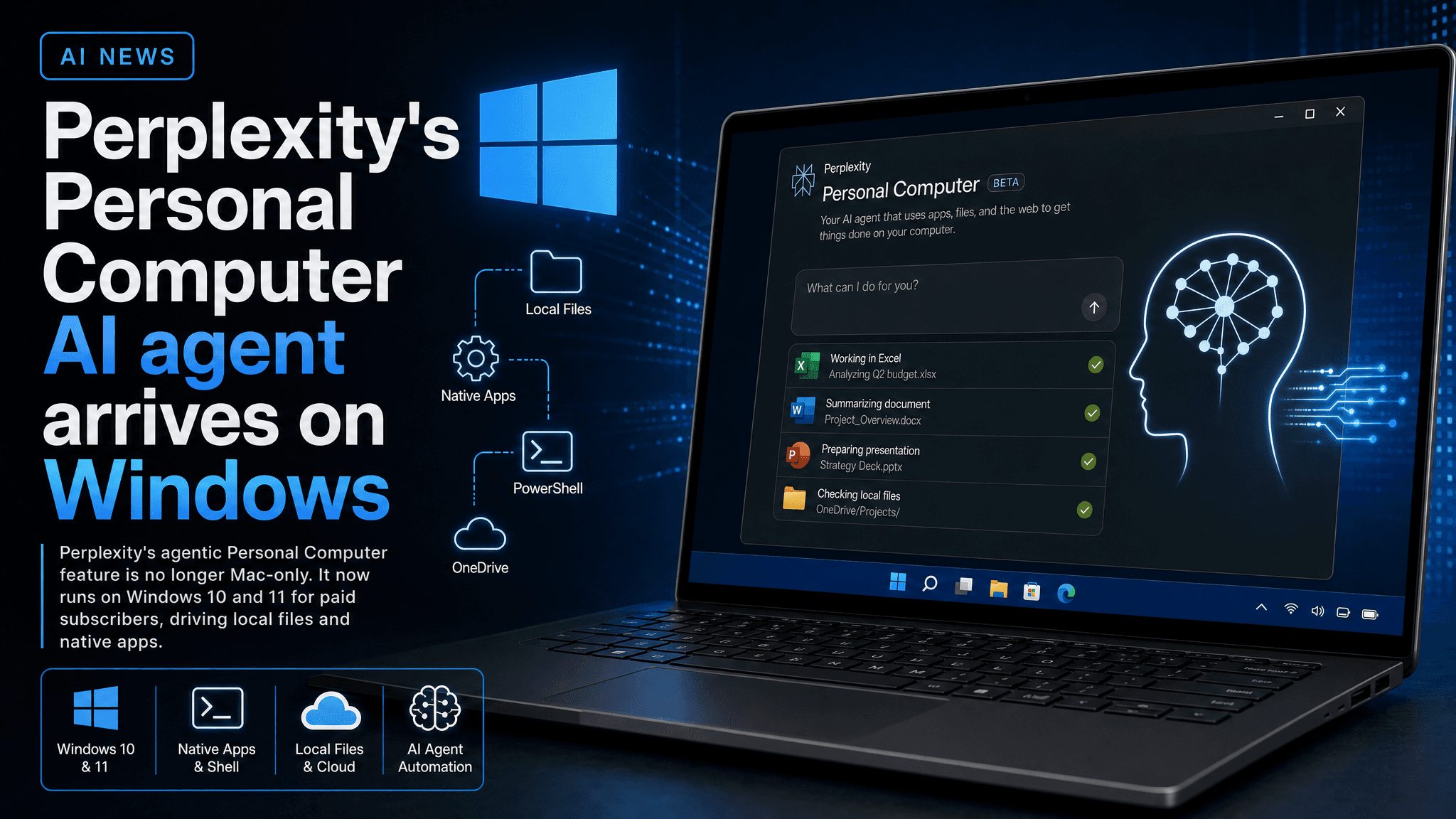
Perplexity's agentic Personal Computer feature is no longer Mac-only. It now runs on Windows 10 and 11 for paid subscribers, driving local files and native apps.
Perplexity's agentic AI, Personal Computer, has expanded from the Mac to Windows. A ZDNET hands-on by Lance Whitney describes running five complex multi-step tasks on a Windows PC with little or no human interaction, and the Windows version holds up as a practical agentic environment rather than a demo.
What changed
Personal Computer was previously available only in Perplexity's macOS desktop app. It now runs on both Windows 11 and Windows 10 -- notably including the older OS, which broadens the range of machines it can run on. The agent completes described tasks on the computer on its own, in the same style as other desktop AI agents now shipping from major vendors.
Requirements and availability
Personal Computer is gated behind Perplexity's paid tiers: Pro, Max, or Enterprise. There is no free path to the agentic features. You install the current Perplexity app for Windows, available from the Perplexity downloads page or the Microsoft Store.
What the agent can actually touch
Once installed, the Perplexity app works with:
- Local files -- the agent can read and work with files stored on the machine.
- Native applications -- it can drive any application installed on the Windows computer, which is what lets it perform multi-step tasks end to end.
Cloud connectors are separate. Linking OneDrive, Google Drive, Box, or Dropbox lets the agent reach files in those services too. That matters if your work sits across a local machine and cloud storage: you link the services instead of downloading copies manually and pointing the agent at them.
There is also a voice mode. Instead of typing a request, you can speak it and hold a back-and-forth conversation with the agent to resolve ambiguities before it starts work. On complex tasks, an unclear instruction would otherwise cost you a full agent run.
Setup
Getting started is deliberately simple. On first launch, the app asks whether to let the AI work with your local files; clicking "Enable local access" grants it. Cloud connectors are added separately: select Customize in the left pane, pick a service from the connectors screen, click Add Connector, and sign in to that service.
The tradeoffs
The obvious caveats for technically minded users: an agent with local file access and control of native applications is a high-trust deployment. You are granting a cloud-backed AI access to your filesystem and signed-in cloud accounts, and the feature only exists on paid plans. Whether it belongs on a work machine depends on your comfort with that model and your organization's data policies -- nothing in the hands-on reporting suggests on-premises or offline operation, and Perplexity's documentation does not describe a fully local mode for this feature.
What this means in practice
Agentic AI on the desktop is moving from novelty to shipping product, and Windows users no longer need a Mac to try Perplexity's take on it. If you are on Pro, Max, or Enterprise, installing the Windows app and enabling local access gets you an agent that can drive native apps and cloud storage in one workflow. The five-task hands-on suggests it handles genuinely complex jobs with minimal intervention -- but given what it touches, start with non-sensitive files and audit the connectors before handing it anything important.
Comments
Sign in or create an account to leave a comment.
0 comments
No comments yet.